About LTL orders. LTL (Less-Than-Truckload / freight) orders are shipped by freight carrier — you arrange the freight directly. Go-Parts Ship does not print a shipping label for these; instead you enter the tracking after you ship. Everything you record here keeps the order status up to date for everyone.
1Finding your LTL Orders
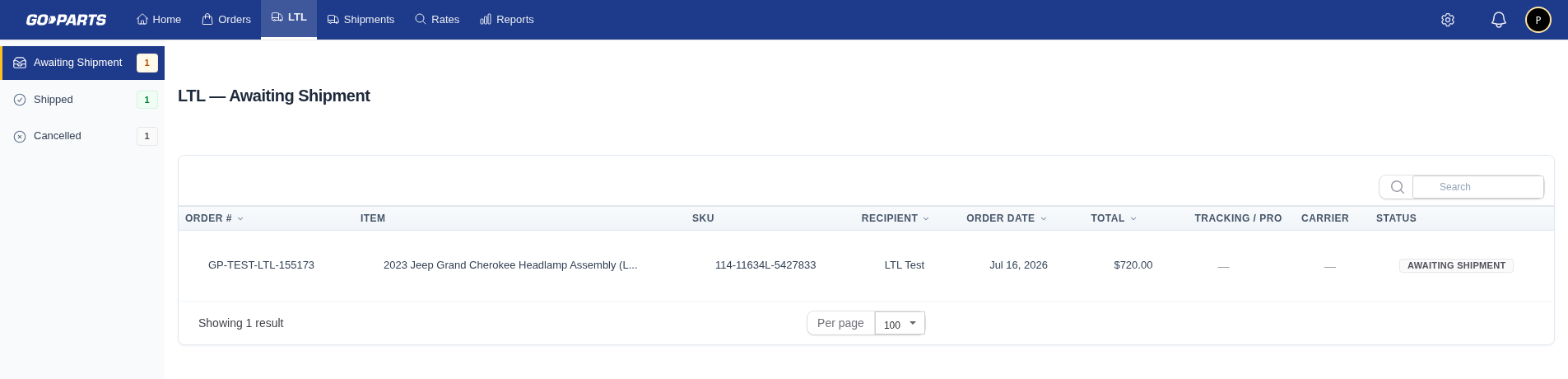
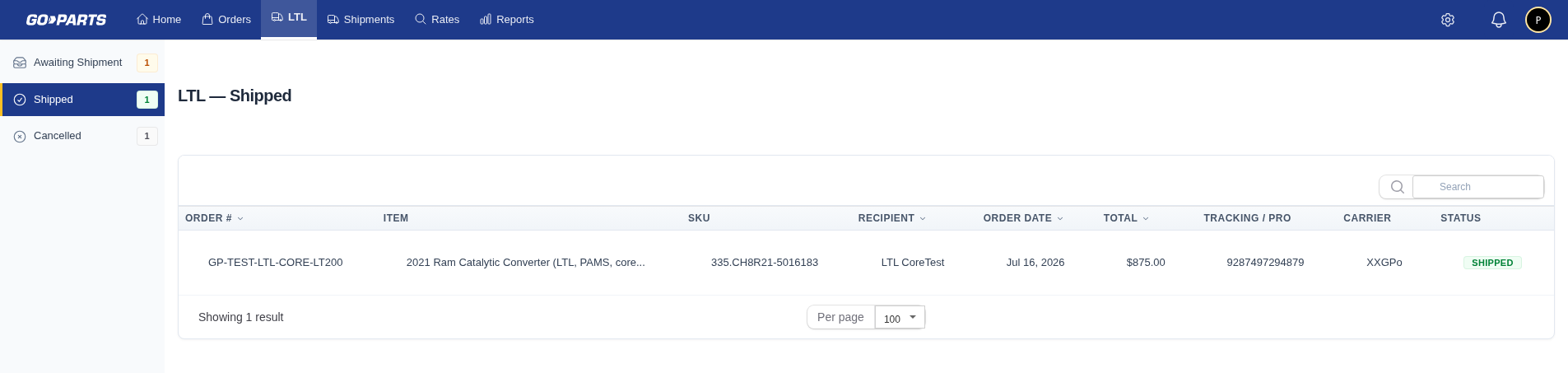
Open the LTL item in the top navigation. On the side you’ll see sub-menus, each with a count so you know where work is waiting:
Start in Awaiting Shipment — those are the orders that need to ship.
2Reviewing a new order
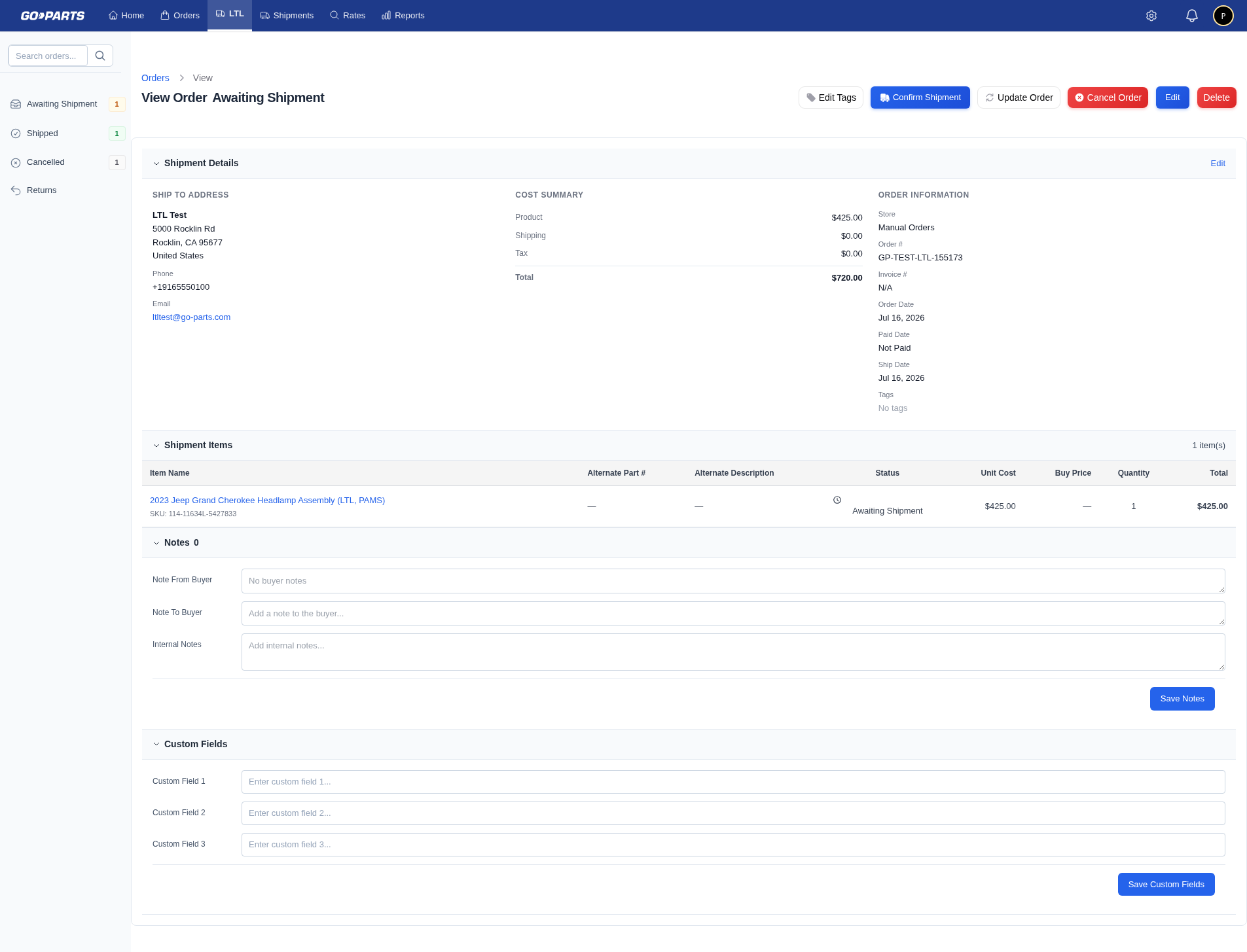
Open an order in Awaiting Shipment and check the details before you ship:
- Item and quantity
- Recipient and delivery address
- Any freight notes on the order
3Confirming shipment
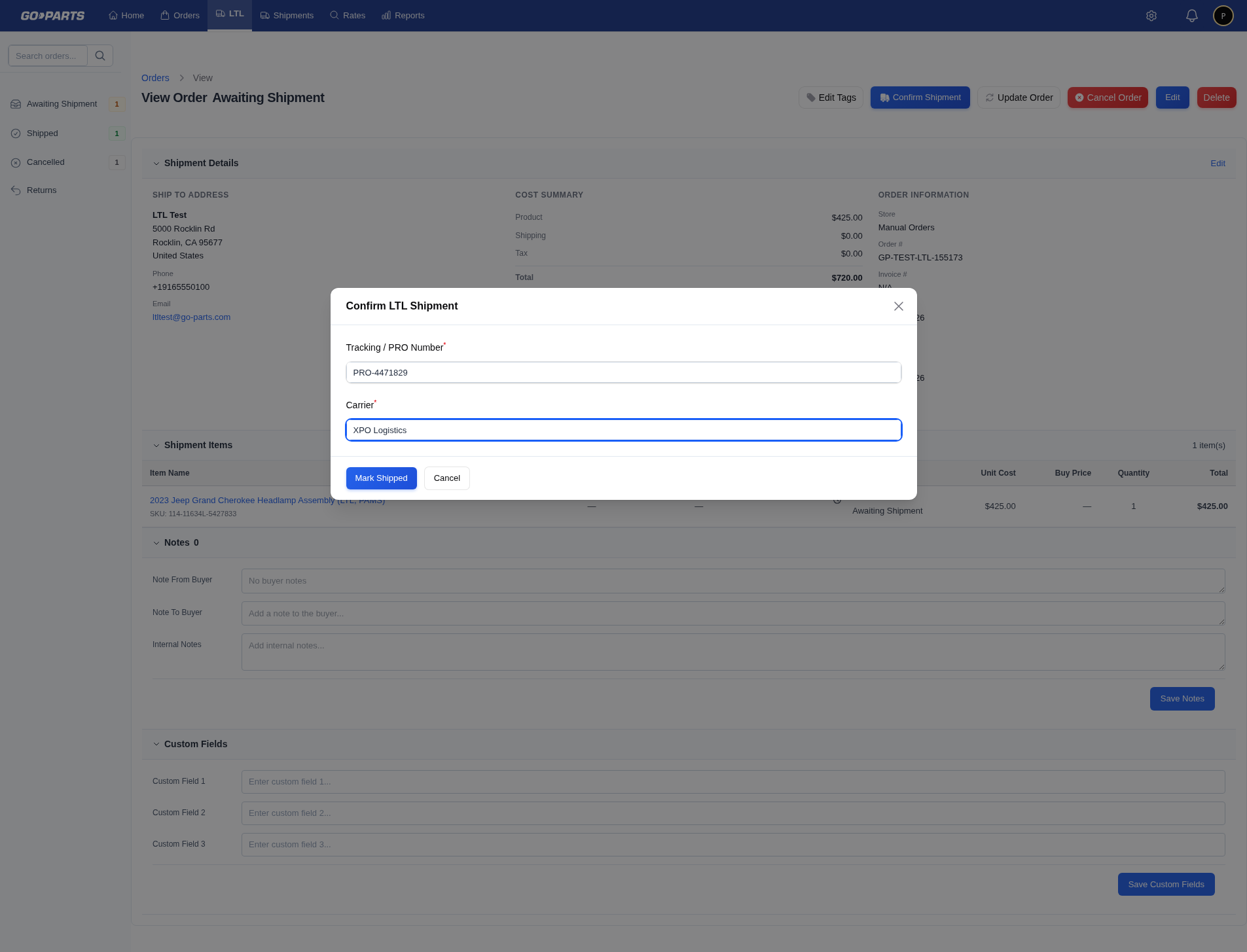
After you’ve shipped the freight, record it so the order shows as shipped:
- On the order, click Confirm Shipment.
- Enter the tracking number and carrier.
- Submit — the order moves to Shipped.
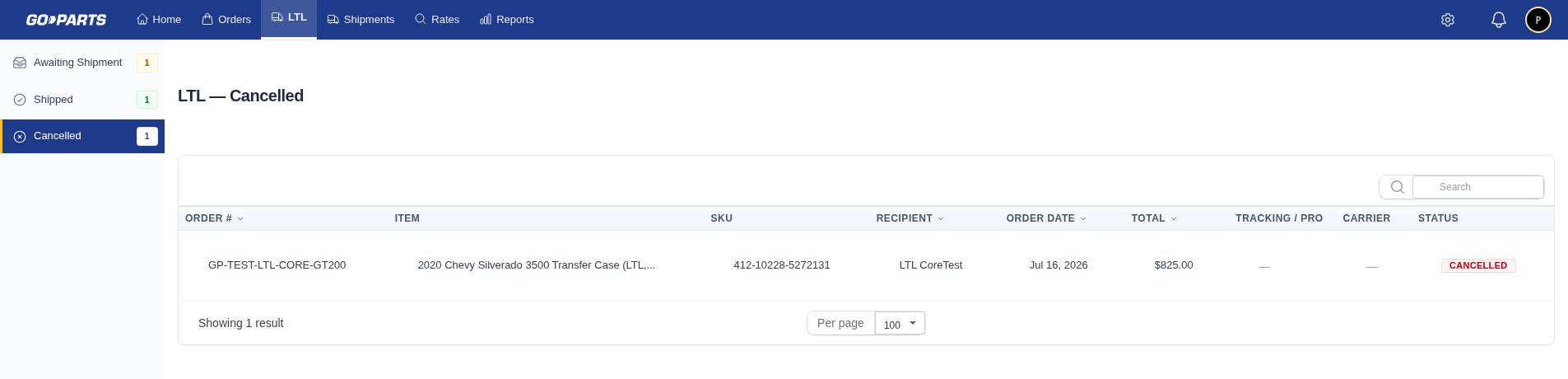
4Cancelled orders
Cancelled freight orders appear under the Cancelled sub-menu. A Cancelled order is one that will not ship — no further action is needed from you.