The big picture. An LTL (Less-Than-Truckload / freight) order is one the supplier ships on a pallet by freight carrier — not a normal parcel. Staff process these in Central (verify the item, set it to Ready to Order), which hands the order to PAMS on Go-Parts Ship. PAMS ships the freight and records the tracking there, and it syncs back to Central automatically. In the Go-Parts Ship Staff panel, staff monitor these orders and handle messaging — they do not ship or cancel from there.
A · In Central (admin panel)
1Logging in
Sign in at central.go-parts.com and open the Orders area — the same place you manage every order today. LTL orders are regular orders that happen to contain a freight item.
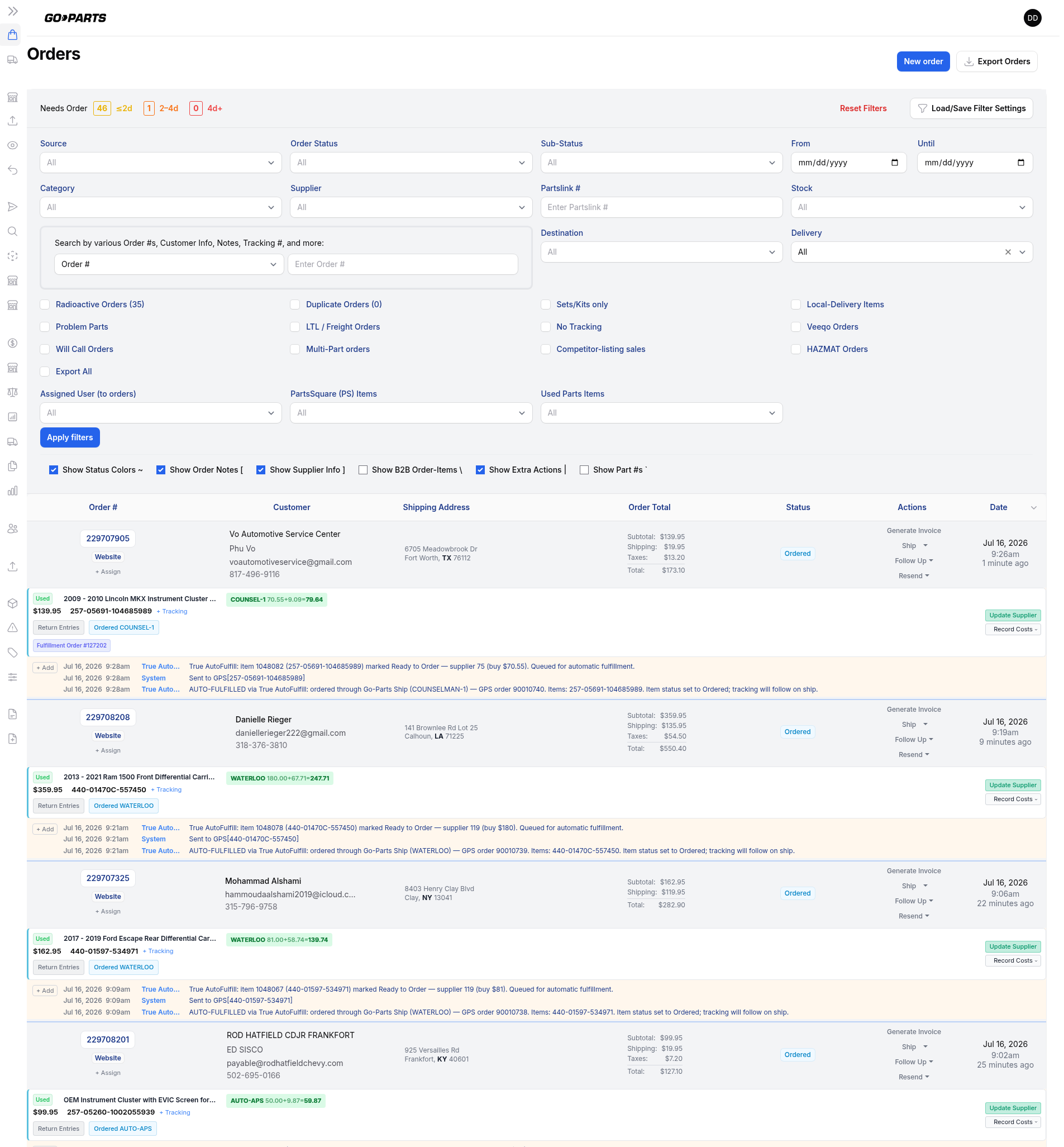
2Recognising an LTL / freight item
A freight item carries an LTL badge wherever it appears, so you can spot one at a glance. Look for it in these places:
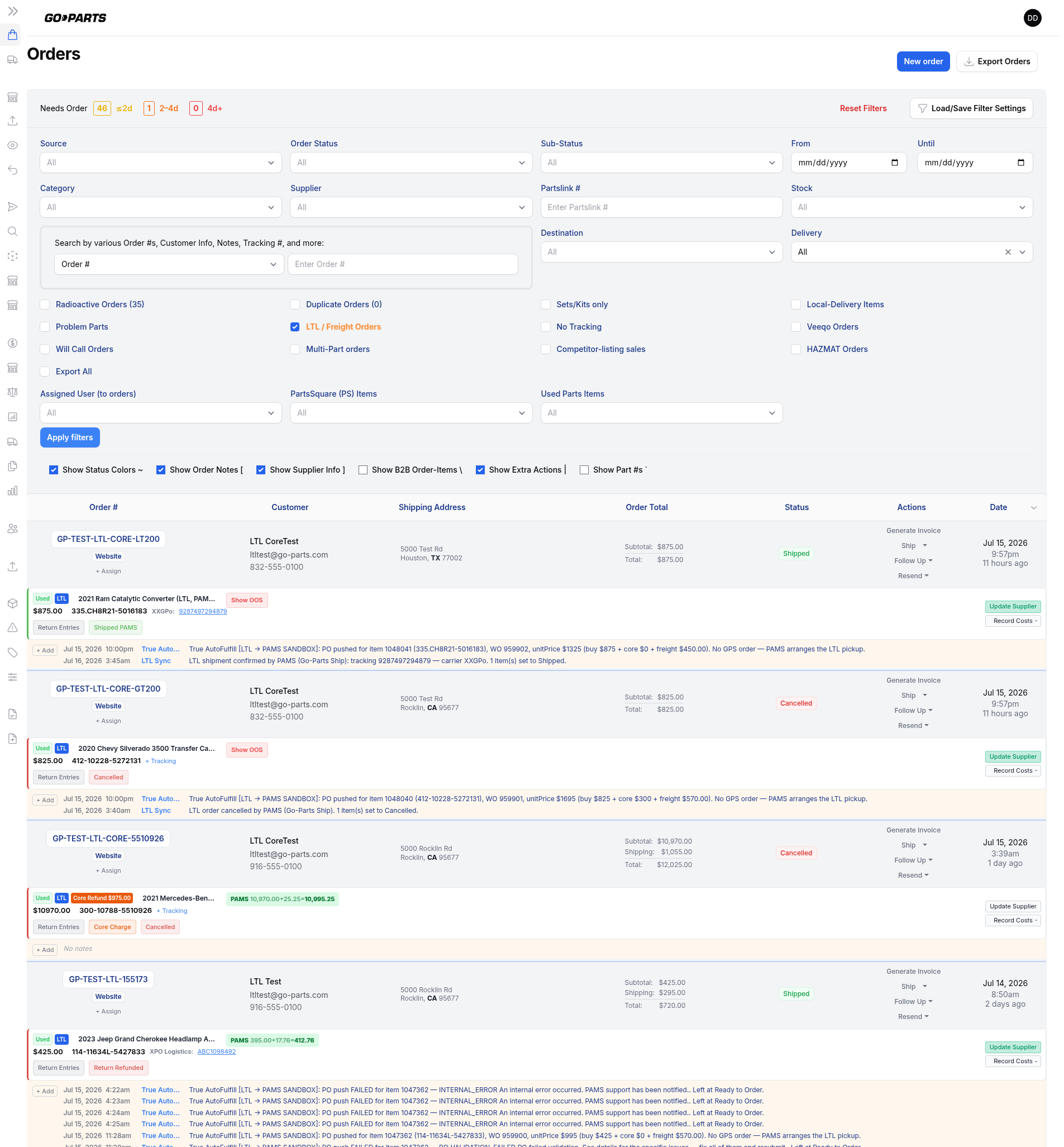
3Filtering to only LTL orders
On the Orders page, use the “LTL / Freight Orders” checkbox filter to show only orders that contain at least one freight item. This is the fastest way to work your freight queue without scrolling past normal parcel orders.
- Open the filter panel on the Orders page.
- Tick LTL / Freight Orders (indicator reads “LTL / Freight Only”).
- The list now shows freight orders only.
4Processing an LTL order — “Ready to Order”
Freight orders are not auto-fulfilled. A person must review the item and deliberately release it. To send an LTL order to PAMS:
- Open the order and confirm the freight item is correct (part, quantity, address).
- Open the item’s status picker and choose “Ready to Order.”
- That hands the order to PAMS on Go-Parts Ship (the order record is created there) and sends the purchase order.
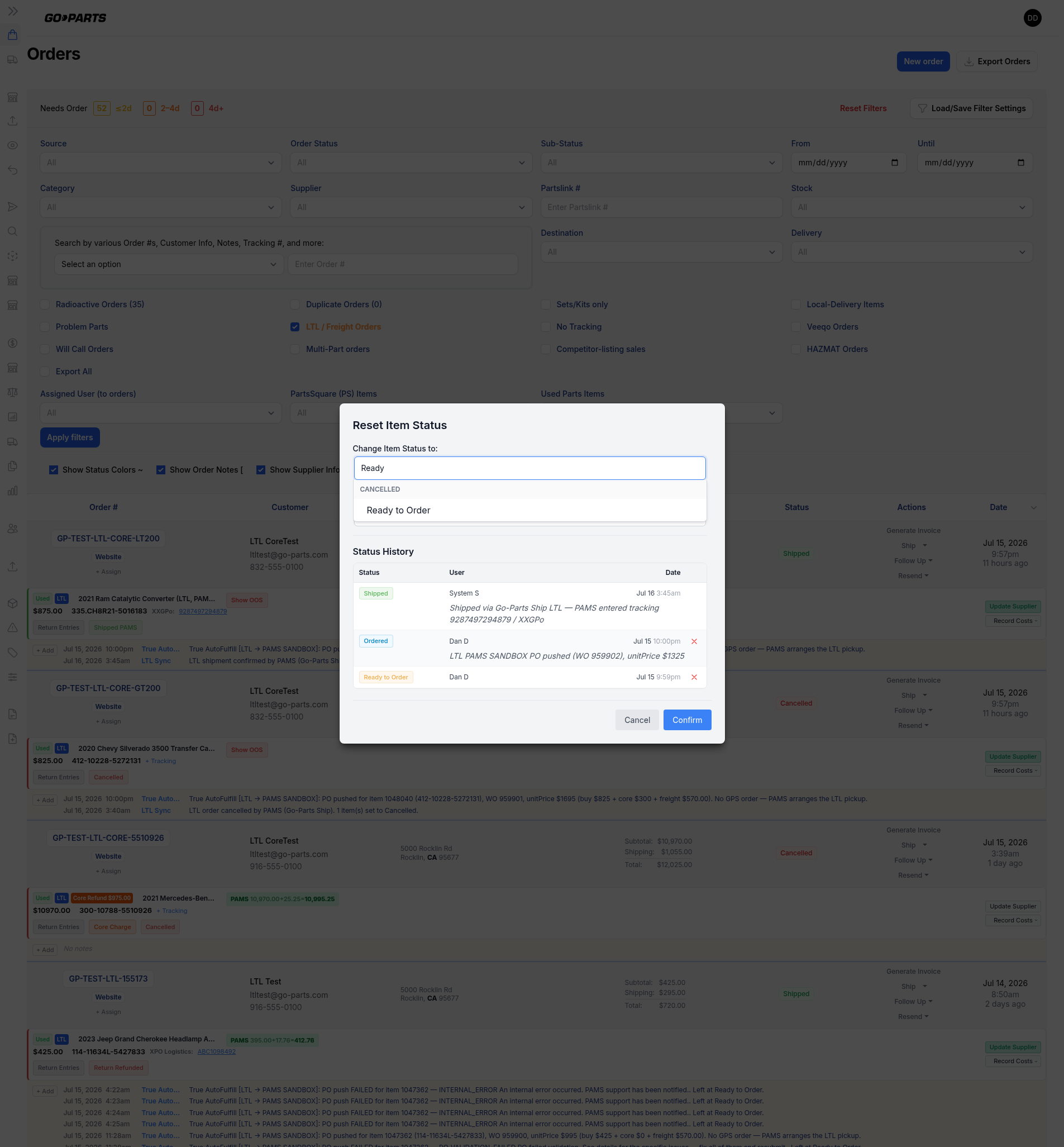
5Watching the round-trip on Central
Once released, PAMS ships the freight and the status flows back to Central on its own — you don’t re-key anything. Expect to see:
- Shipped with the freight tracking number once PAMS confirms shipment.
- Cancelled if the order is cancelled on either side.
6Cancelling an LTL order
If a freight order must be cancelled, set it to Cancelled in Central. The cancellation syncs to Go-Parts Ship (and a cancellation made on Go-Parts Ship syncs back to Central), so both systems stay in agreement.
B · In the Go-Parts Ship Staff panel (oversight)
Sign in at ship.go-parts.com/staff. This panel is for monitoring and communication. Staff cannot confirm shipment or cancel here — those actions belong to PAMS (shipping) and Central (release/cancel).
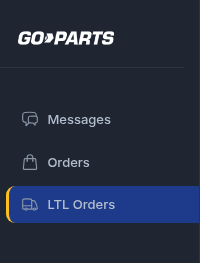
7Where LTL lives
In the left navigation there is a dedicated “LTL Orders” item (truck icon), sitting beside Orders. It shows a count badge for orders currently awaiting shipment.
8Why LTL is a separate section
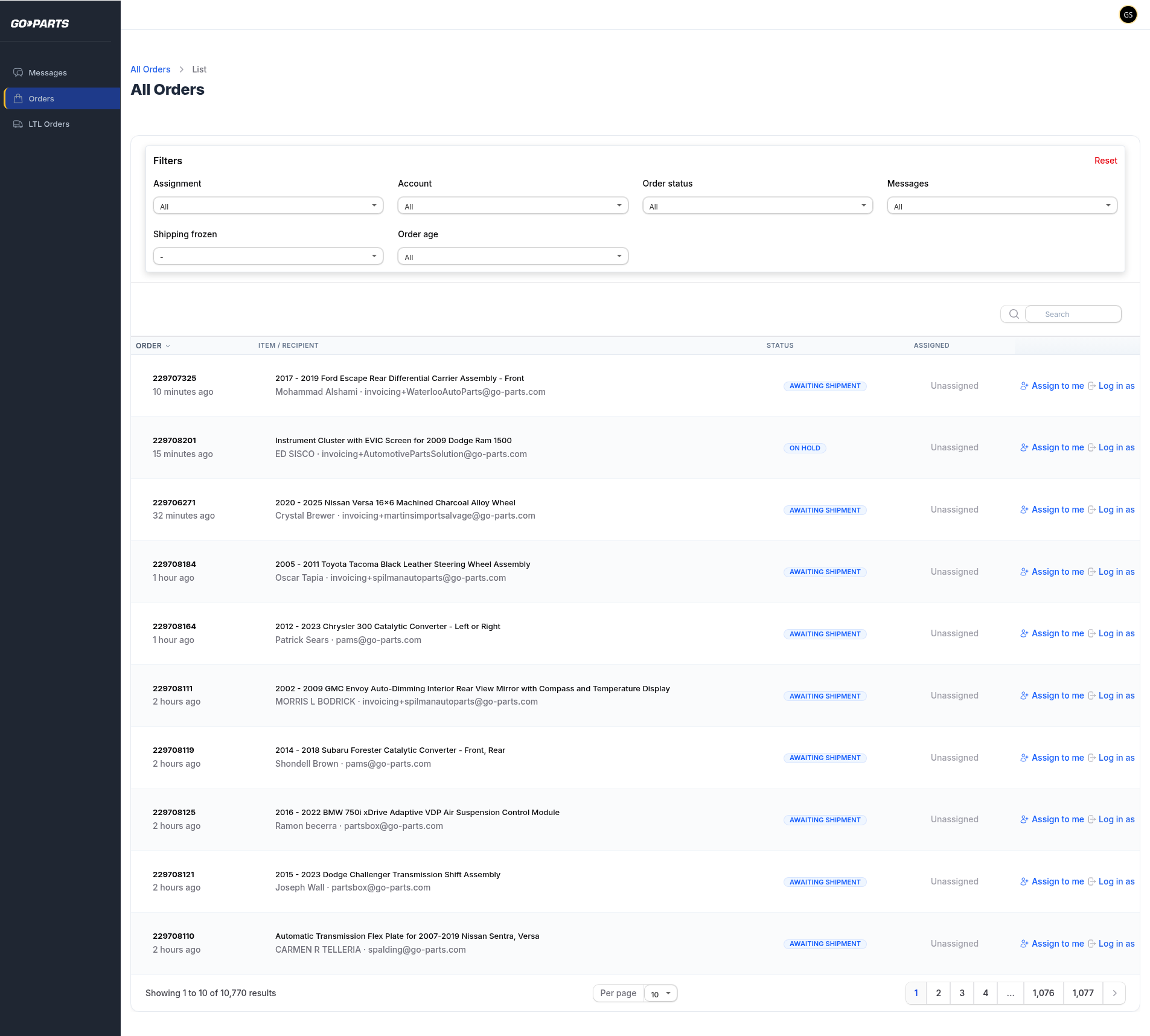
Freight orders are deliberately pulled out of the normal Orders list and live only under LTL Orders. This keeps the main orders list clean and lets you work freight as its own queue.
9Reading the LTL Orders list
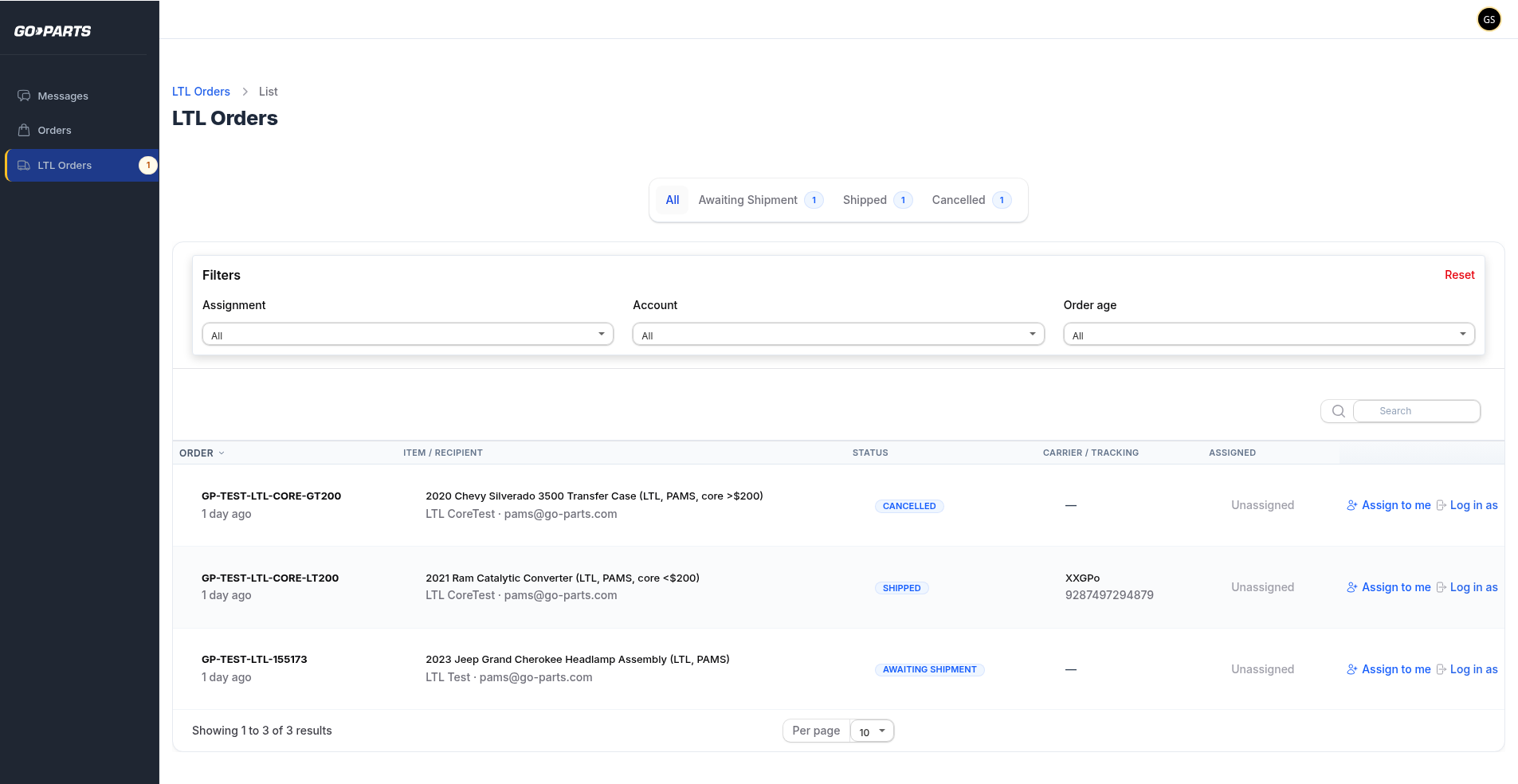
Each row shows the essentials for oversight:
- Order — order number + age
- Item / Recipient — part, recipient and account
- Status — current item status
- Carrier / Tracking — freight carrier + tracking (a column unique to LTL)
- Assigned — which staff member owns it
10Status tabs
Tabs across the top group orders by stage, each with a live count:
Awaiting Shipment = released, waiting on PAMS to ship. Shipped = PAMS entered tracking. Cancelled = order will not ship.
11Filters & search
Narrow the list with Assignment (assigned to me / unassigned / by staff member), Account, and Order age. Search by order number, recipient, or account email.
12Claiming an order
Use Assign to me to take ownership of an order (an Assigned badge appears), and Release to hand it back to the unassigned pool.
13Opening an LTL order
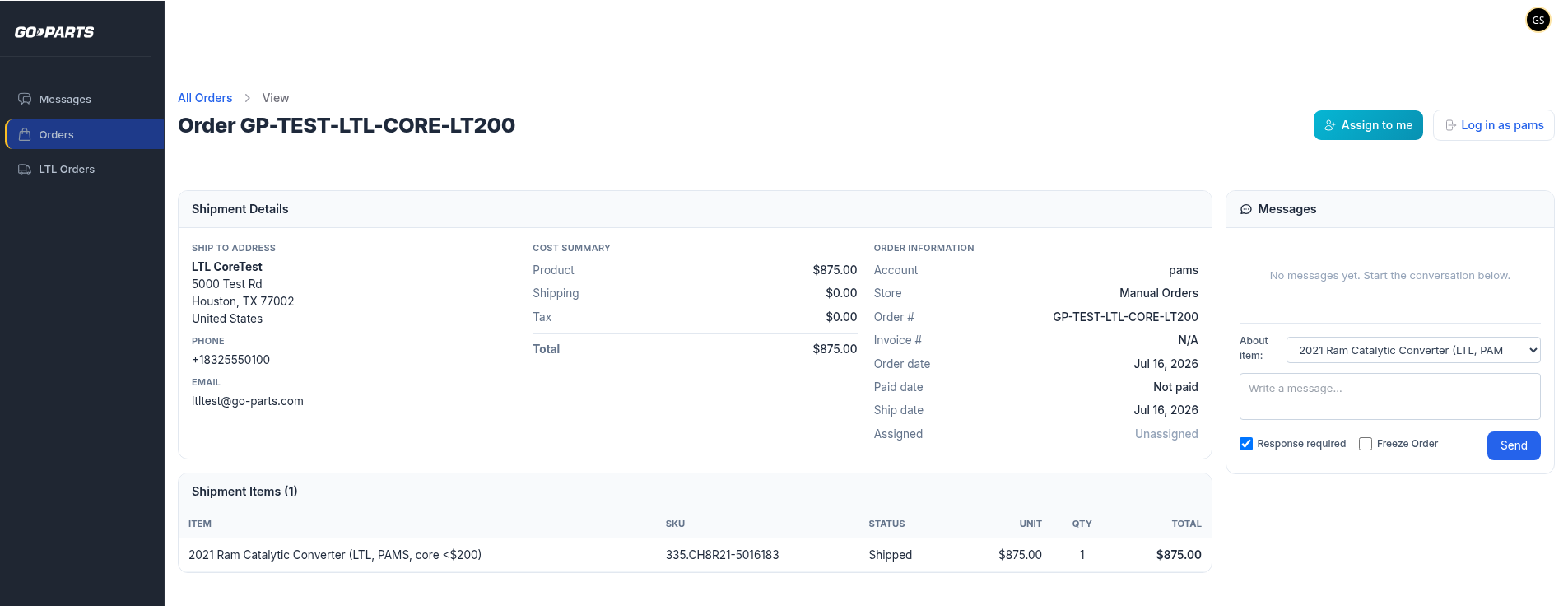
Click a row to open the order detail. Read the status, freight carrier + tracking, and any per-item return information. Note there are no ship / return / cancel buttons here — this view is for oversight only.
14Log in as (impersonate)
Use Log in as to open the account’s own view when troubleshooting what a customer or yard is seeing.
15Messaging — one common inbox
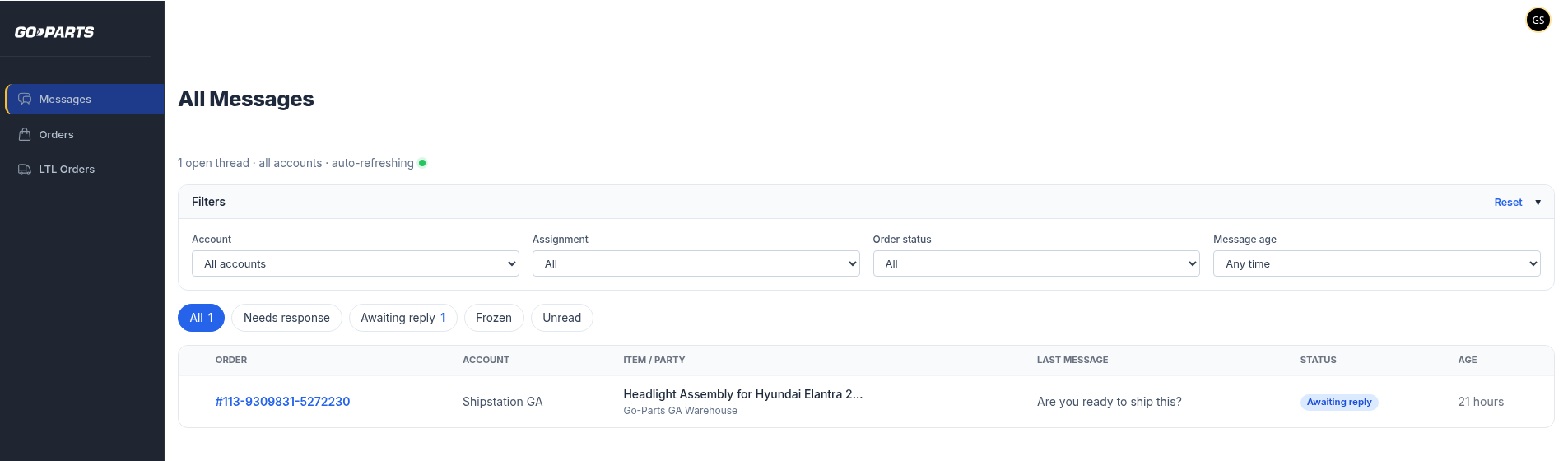
The Messages section is a single inbox covering both normal orders and LTL orders — a message tied to a freight order lands in the same place as any other. Reply as the ops side from the order page or from the inbox.
16The lifecycle you’ll observe
End to end, a freight order moves through:
Ready to Order (Central) → Awaiting Shipment → Shipped (tracking) — or Cancelled.
Every one of these stays in sync between Central and Go-Parts Ship automatically, so both systems always tell the same story.